

Learn more about this program's testing by visiting their website
O. P. Jindal Global University (JGU)
About JGU
O. P. Jindal Global University (JGU) was established in 2009 as a non-profit institution, with the mission of being a private university promoting public service. JGU is located in the National Capital Region of Delhi. It has a state-of-the-art, self-sufficient, and residential campus, housing over 4000 students from 29 Indian states and Union territories and 20 countries.
JGU has established eight interdisciplinary schools offering undergraduate, postgraduate and doctoral degree programmes - Jindal Global Law School (JGLS), Jindal Global Business School (JGBS), Jindal School of International Affairs (JSIA), Jindal School of Government & Public Policy (JSGP), Jindal School of Liberal Arts & Humanities (JSLH), Jindal School of Journalism & Communication (JSJC), Jindal School of Art & Architecture (JSAA) and Jindal School of Banking & Finance (JSBF) - and three research and capacity building institutes.
In June 2019, JGU was placed among the top 2.67% of all universities globally in the 2020 Quacquarelli Symonds World University Rankings making it the youngest University in the world, to have featured in these prestigious rankings. In September 2019, JGU was awarded Institution of Eminence (IOE) status by Ministry of Human Resource Development (MHRD), Government of India.
JGU is one of the few universities in Asia that maintains a 1:10 faculty-student ratio and appoints faculty members from India and different parts of the world with outstanding academic qualifications and experience. Over fifty-five percent of JGU faculty members are alumni of world's top 200 universities including Oxford, Cambridge, Harvard, Yale, Stanford, Columbia, Brown, Berkeley, Cornell, Johns Hopkins, and Chicago.
JGU is a research-intensive university and is deeply committed to its core institutional values of interdisciplinary and innovative pedagogy; pluralism and rigorous scholarship; and globalism and international engagement.
A few minutes before your Exam Appointment time, ready your workspace. Use a room or area where you can be alone and uninterrupted for the entire duration of the exam. Set up your computer on a table, desk, or other flat surface that leaves you enough room to use scratch paper. You may keep the computer and webcam (If Separate), Pen or Pencil, two pieces of Blank Scratch Paper and a clear water bottle with you during the exam but be sure to clear EVERYTHING else from your desk.
- Log-in into the exam using the steps mentioned below at least 15 minutes before the scheduled time.
- If you have already installed RLB, please skip Step 1 and 2
| Step 1 | Download Respondus Lockdown Browser depending upon the OS | Windows Respondus Lockdown Browser Note: The above link contains the Respondus lockdown browser software and the installation guide. Mac Respondus Lockdown Browser Note: The above link contains the Respondus lockdown browser software and the installation guide. |
| Step 2 | Install Respondus Lockdown Browser | Administrator privileges are required to install applications. Ensure you have provided all the permissions as per the installation guide included in the above link. |
| Step 3 | Go to Exam | At the start of the exam, you must use your computer’s camera to take a clear photo of your face and acceptable ID at login, or your exam may be rejected. |
| Step 4 | Login to your dashboard using the credentials | Will be shared over registered email ID |
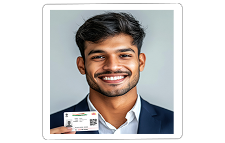
- At the start of exam, you will be required to click your own photograph with your Government ID Proof when you enter your credentials. Look into the camera with your face and ID clearly visible in the frame and then click Capture and Confirm to ensure your photo is correctly uploaded. In case you are unable to click a clean picture, then you will be able to recapture the photo through Capture button. Click Confirm only after you have a clear picture. Failure to click a clean photo with your face visible clearly may lead to cancellation of your exam. The photograph at this stage will be reviewed by your proctor and is expected to be approved within 15 minutes.
- Once your photo has been accepted, the proctor will enable your Start Exam button to start the exam. Please note that this check-in time is not included in your exam duration.
- Throughout the exam, you should ensure there are no disturbances or unusual/suspicious activities as everything is being recorded. Any such suspicious movements will raise flags to the exam reviewer, and the automatic system may even stop / cancel your exam. So, you are requested to be consciously focused on attempting this exam with full integrity.
You must have one of the following Valid IDs (Original and Not Expired) available with you at the time of exam:
- Passport
- UID/Aadhar Card
- Voter ID Card/Election Card
- Driving License
- PAN Card
- School or Institution Photo ID Card
Note: While we strive to assist where you may need help, some OS versions and/or Hardware and software applications may hinder the overall setup or exam. Your cooperation and understanding are requested through these steps.
Recommended Specifications
| Operating System | Windows Windows 11 (64-bit) (excluding ‘S Mode’) Note: Windows OS must pass Genuine Windows validation. Windows Vista, Windows XP, Windows 7 and Windows 8/8.1 are strictly prohibited. Support for Windows 10 ended on October 14, 2025. After this date, Microsoft no longer provides security updates, technical assistance, or feature updates for the operating system. |
|---|---|
| macOS macOS 11 to macOS 26.5 [excluding beta versions] |
|
| Device | No tablet (hybrid like Windows Surface Pro as well) or mobile phone must be used for exam |
| Firewall | Do not take your exam using a computer that is managed by network/configured under a corporate firewall (including VPN). Computers managed by corporate organizations and office computers will have stringent rules imposed on them by the organization. Thus, attempting the exam using such computers will result in a difficult exam experience. |
| RAM | OS specified minimum RAM 4 GB RAM or more |
| Display | Minimum resolution: 1280 x 1024 Recommended resolution (best viewed with): 1366 x 768 |
| Webcam | Webcam may be internal or external and connected to the computer. You may need to allow camera access to enable your webcam. Note: Using phone as a web camera is strictly prohibited. |
| Web Browsers | Supported web browser in Windows – Chrome (82.0 or above), Firefox (68 or above). Supported web browser in Mac – Safari (14.1 and above), Chrome (94.0.46 and above) and Firefox (92 and above) |
| Browser Settings | Disabled pop-up blockers in web browser Internet Cookies must be enabled |
| Internet Connection | Internet with consistent speed (as equivalent to browsing) (2 to 5 Mbps). Mobile hotspot and Dongle are not recommended as these can impact your exam experience due to varying speeds. |
| Antivirus | Any antivirus product may be used (updated antivirus), but please ensure there are no planned virus scans on the day of your exam. Please disable the Auto-scanning feature in the antivirus settings before the exam, for seamless exam experience. If the scanning starts during the exam, this might cause technical glitches thus affecting the exam and time loss. After the exam is complete, you may enable the Auto-scanning settings as before. |
| Prohibited Applications | End all web sharing applications like Skype, Team Viewer, MS Teams, Zoom, GoToMeeting, ShareIt, Webex, etc. |
- Ensure you are sitting in a quiet area with enough lighting required to record your face through the webcam.
- You should be alone when examining. You should not be interacting with others while the exam delivery is in progress.
- Be mindful of whether your webcam is capturing your image. Always be seated within the frame/ boundaries of the webcam.
- You may use only TWO BLANK white A4 page and a pen/pencil during exam to do your rough work, ensure to show blank white paper and a pen/pencil on the camera before starting the exam. Using any kind of books/notebooks may lead to cancellation of your exam and scores.
- Sunglasses or caps cannot be worn during the exam. However, religious headgear may be worn during the exam.
- You may keep a clear bottle of water on the desk during the exam. However, eatables are not permitted.
- Use of any kind of electronic device except the computer used for examining (Bluetooth watches, headphones, headsets, ear-pods, fitness watches, etc.) is strictly prohibited.
- As the screen will have a countdown timer, you may not to wear a watch of any kind during the exam.
- Any suspicious movements, like leaving your seat or looking anywhere except your screen or workspace, will raise flags and may lead to the cancellation of your exam and scores.
Disclaimer: If your system fails to meet the minimum requirements, it may cause issues during the exam or prevent you from starting it.
- View the Respondus Lockdown Browser Installation Manual.
- To familiarize yourself further with the exam screens and navigation, view the Instructional Video.
- In case you have questions or concerns regarding any of the above information, please contact us immediately on opjgucoordinator@pearson.com or call 0008000504160 & Select Option 1. (Available all days except public holidays, 8:30 AM – 6 PM IST).
- For any technical support, before you contact us, please ensure that all steps related to the Respondus Lockdown Browser mentioned above are completed. If remote assistance is required, our technical team will send a Zoho Meeting link to your registered email id, so that our technical team can login remotely and assist you to resolve the reported concerns. Please refer to the help video for guidance on joining the session.
Resources
Schools
- O. P. Jindal Global University website
- Jindal School of Art & Architecture
- Jindal School of Banking and Finance
- Jindal School of Government and Public Policy
- Jindal School of International Affairs
- Jindal School of Journalism & Communication
- Jindal School of Liberal Arts and Humanities
- Jindal School of Psychology & Counselling
Last updated 2026-06-30